
A Beginner’s Guide to Setting Up a New Television for Internet Viewing
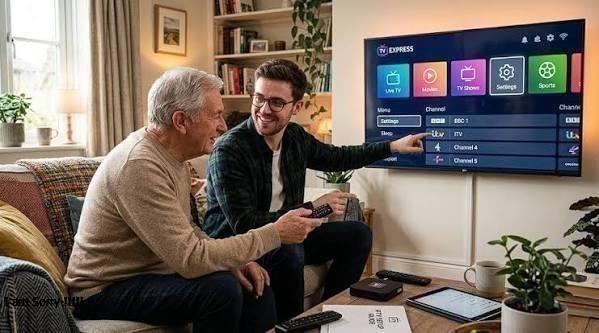
Setting up a new television can feel confusing when you are unfamiliar with smart TV features and internet-based entertainment. Modern televisions offer much more than traditional broadcast channels. They can connect to the internet, run streaming applications, display online videos, and provide access to a wide range of digital content.
The good news is that getting started usually requires only a few basic steps. With a suitable internet connection, the correct settings, and a little patience, most users can prepare their television for online viewing without needing advanced technical knowledge.
This guide explains how to connect a new television to the internet, install applications, adjust important settings, and resolve common problems. Whether you are replacing an older television or using internet-based viewing for the first time, understanding the setup process can help you create a more convenient home entertainment experience.
1. Check Your Television and Internet Requirements
Before connecting anything, check whether your television supports internet connectivity. Most modern smart TVs include built-in Wi-Fi and an Ethernet port. Some older televisions may not have smart features, but they can often access online content through an external streaming device connected to an HDMI port.
Read the television's manual or review the manufacturer's specifications to confirm which connection options are available. It is also useful to identify the location of the HDMI ports, USB ports, and Ethernet connection before positioning the television.
Next, check your home internet connection. Streaming quality depends on several factors, including available bandwidth, network congestion, the capabilities of your router, and the number of devices using the connection.
If you plan to watch high-definition or 4K content, a stable connection is particularly important. Your internet provider's advertised speed may not always reflect the performance available in the room where the television is installed.
It is also worth checking whether your router is positioned far from the television. Thick walls, furniture, and interference from nearby devices can weaken a wireless signal. Identifying these issues early can make the rest of the setup easier.
2. Connect the Television to Your Home Network
Connecting your television to the internet is one of the most important steps. Without an active connection, many smart TV features and streaming applications will not work properly.
Start by turning on the television and opening its settings menu. Look for an option such as Network, Internet, Connection, or Wi-Fi. The exact wording depends on the manufacturer and operating system. For viewers exploring network television options, understanding how the television connects to a home network is an important part of preparing for online viewing.
If you want to use Wi-Fi, select your home network from the available list and enter the password. Make sure you choose the correct network, particularly if your router broadcasts separate network names for different frequency bands.
Some televisions also support a wired Ethernet connection. If your router is nearby, connecting an Ethernet cable directly to the television can provide a stable connection and reduce wireless interference. This option can be useful when watching high-resolution content or experiencing frequent buffering over Wi-Fi.
After entering the connection details, wait for the television to confirm that it is online. If the connection fails, double-check the password and restart the router if necessary.
A successful connection test is a useful starting point before installing applications or changing streaming settings.
3. Understand How Internet-Based Television Works
Once your television is connected, it can access different types of online entertainment. These may include subscription streaming platforms, free video applications, broadcaster catch-up services, and live television services delivered over the internet.
Unlike traditional broadcasting, internet-based viewing sends video through a data connection. This means the experience depends on both the service you choose and the quality of your home network.
Online television can include live channels, on-demand programmes, and other forms of digital content. The features available depend on the application, service provider, device compatibility, and any subscription requirements.
Before signing up for a service, check which devices it supports, what content it offers, and whether it provides clear installation instructions. Some applications work directly on a smart TV, while others require a compatible streaming box or media player.
It is also important to use legitimate services and applications. Checking the provider's terms, pricing, supported devices, and customer support information can help you make a more informed decision.
Understanding these differences makes it easier to choose the right options for your household instead of installing applications that may not meet your needs.
4. Install and Organise Your Streaming Applications
Many smart TVs include a built-in application store. This allows users to download supported streaming applications without connecting another device.
Open the application store from the television's home screen and search for the services you want to use. Select the relevant application and follow the installation instructions. Once installed, open it and sign in using your existing account or create a new account if required.
Some applications may require a subscription, while others offer free content. Review the pricing and account requirements before confirming any purchase.
After installing the applications you use most often, arrange them in a convenient order if your television allows customisation. Keeping frequently used services near the beginning of the home screen can save time and make navigation easier.
Avoid installing unnecessary applications simply because they are available. Too many unused apps can make the interface cluttered, and some televisions have limited storage.
If an application is unavailable in the TV's app store, check whether your television supports it through another official installation method. An external streaming device may be an option for televisions that lack the required software.
5. Adjust Picture, Sound, and Accessibility Settings
A new television may not provide the best viewing experience with its default settings. Taking a few minutes to adjust picture and sound options can make online content more comfortable to watch.
Start with the picture mode. Common options include Standard, Cinema, Movie, Sports, and Vivid. Cinema or Movie modes often aim for a more natural presentation, while Sports modes may adjust motion and brightness for fast-moving action.
You can also adjust brightness, contrast, colour temperature, and motion processing. Make small changes and compare the results rather than changing every setting at once.
For sound, select a suitable audio mode and confirm that the volume is consistent when switching between applications. If you use a soundbar or external speakers, follow the manufacturer's instructions for connecting and configuring them.
Accessibility settings are worth checking as well. Subtitles, larger text, voice controls, and audio descriptions can make television easier to use for people with different needs. These features may be located in the main settings menu or within individual streaming applications.
The best settings depend on the room, screen, content, and personal preferences. A comfortable setup is more important than using every available feature.
6. Test Streaming Quality and Fix Common Problems
After installing your applications and adjusting the settings, play a video to confirm that everything works correctly. Test more than one application if possible, as a problem with a single service may not indicate an issue with your entire internet connection.
If a video keeps buffering, first check whether other devices are using significant internet bandwidth. Downloads, online gaming, and multiple simultaneous streams can reduce the capacity available to your television.
Next, try moving the router closer to the TV, connecting through Ethernet, or restarting the router and television. If only one application is affected, check whether it needs an update or whether the service is experiencing a temporary problem.
Picture quality can also vary depending on the content and streaming service. Some applications adjust resolution automatically according to network conditions. If the picture appears blurry, allow the stream a short time to stabilise and check whether the programme is available in a higher resolution.
For persistent problems, use the television's network test if one is available. You can also check the manufacturer's support instructions or contact your internet provider if the connection repeatedly drops.
Avoid changing multiple network settings at once. Testing one solution at a time makes it easier to identify the actual cause of a problem.
7. Keep Your Television Secure and Updated
A connected television should be maintained much like any other internet-enabled device. Software updates can improve performance, fix bugs, and address security issues.
Open the system settings and look for a software update option. If automatic updates are available, consider enabling them so the television can receive supported updates without requiring frequent manual checks.
Use strong, unique passwords for streaming accounts and enable additional account security options where supported. Avoid entering account details into unfamiliar applications or following installation instructions from untrusted sources.
Review privacy settings as well. Some televisions collect usage information or offer personalised recommendations based on viewing activity. Check the available controls to understand what information is collected and which options you can change.
When selling, giving away, or replacing a television, remember to sign out of personal accounts and consider performing a factory reset according to the manufacturer's instructions.
These simple habits help protect your accounts and keep your home entertainment setup in good condition.
Conclusion
Setting up a new television for internet viewing is usually straightforward when you follow a clear process. Start by checking device compatibility and internet requirements, connect the television to your home network, and install the applications you need.
Next, adjust picture, sound, and accessibility settings to suit your preferences. Test streaming quality before relying on the television for everyday entertainment, and keep its software updated to maintain performance and security.
You do not need to configure every feature on the first day. Begin with the basics and make additional adjustments as you become more familiar with the television. With a stable connection and a well-organised setup, you can enjoy a convenient and flexible internet viewing experience at home.
 Greek
Greek
 English
 Arabic
 French
 Spanish
 Portuguese
 Deutsch
 Turkish
 Dutch
Dutch
 Italiano
 Russian
 Romaian
 Portuguese (Brazil)